2-Step for Shared Entries (TOTP)
Overview
There are a variety of options that services can offer for completing 2-step verification, including:
- App-based authentication (e.g., Microsoft Authenticator, Google Authenticator, Duo)
- via notifications and/or one-time passcodes (OTPs)
- Phone calls
- Texting/SMS codes or special links
2-step authentication on shared accounts can be a lot to coordinate, but Bitwarden offers an option to simplify this: Time-based One-Time Passwords (TOTP). TOTP is a 2-step authentication option that can be added to the password entries in your vault. This feature ties the verification process to the Bitwarden platform instead of a single device, which can make it easier for a group to complete 2-step prompts.
2-Step / TOTP
TOTP is available for password entries in your vault if the service can use an authenticator app, such as Google Authenticator or Microsoft Authenticator. Like all Bitwarden vault records, the codes are encrypted, backed up and securely synced to all your devices.
- Bitwarden generates 6-digit one-time passcodes and are regenerated every 30 seconds
- If your computer's clock is not synced with universal Internet time, it could cause the TOTP code to be invalid and you may encounter an error when entering it
You can set up 2-step Authentication for a shared password directly within the Bitwarden vault entry so that everyone with the shared entry can complete the 2-step prompt without needing to contact someone else for the code.
Setting up TOTP
When prompted to set up 2-step by a service, look for the secret key and copy it.On the Edit Login screen in Bitwarden; Paste or enter in the Authenticator key and then click Save. The entry will update to have the Verification code (TOTP).
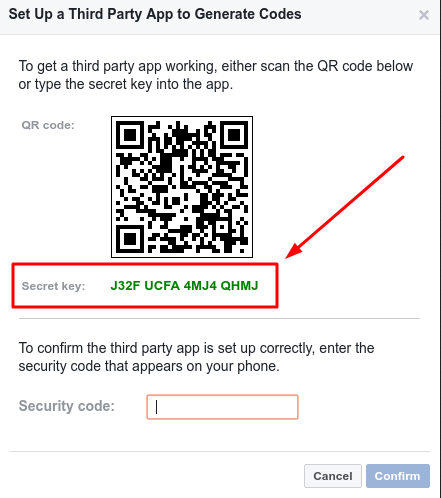
Many services require you to verify that the Authentication has been set up correctly, copy the 6 digit code that Bitwarden generates and paste it into the requested location on that service's site.
Using TOTP
Now that the 2-factor has been set up for the vault entry, all users with that entry can copy the TOTP to their clipboard to provide the one-time passcode for login.
What if a site only allows phone or email verification?
If you need 2-step for a shared credential that doesn't offer app-based authentication, consider using a shared email like a distribution list to set up the account. If an existing distribution list doesn't fit well for the team who needs access, contact IT for options.